
Hello Friends,
Welcome Back. This is the continuation of our tutorial series on Graphical LCD Programming. Till now we have made the hardware for testing and setup avr studio project for graphical development. Now as our hardware and software is ready, its time to get our hands dirty by digging deep into ProGFX graphical programming.
Introduction
The graphical LCD is made up of a grid of pixels. Common resolution is 128×64. That means that their are 64 horizontal lines and each line has 128 pixels. These displays are monochrome that means each pixel can either be ON or OFF. ON pixels looks dark while OFF pixels are nearly invisible. The glcd has a graphic RAM where each bit in ram corresponds to one pixel on screen. You write to the graphic RAM to modify its contents and the screen will change accordingly. The LCD module offers just that much functionality. You can’t do much with that.
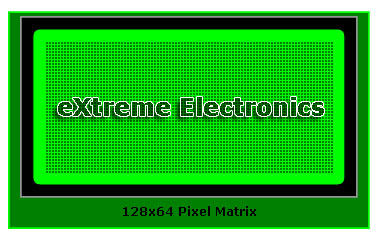 |
Pixel Matrix of Graphical LCD |
You need a graphic library that takes high level commands like
- Graphic primitives like line,circles, rectangle etc
- Text Drawing
- Image/Icon drawing.
- Double buffering.
and changes the graphic memory accordingly. These operation requires some advance algorithms (at least from beginners point of view!). So the graphic library will help you generate complex graphical output very easily.
Pixel Addressing
The horizontal location is called the X address and its starts from the left hand side(where its value is 0) and increases as we move right. The vertical location is called Y address of pixel its starts from the top (where its value is 0) and increases as we move down. Only positive values are allowed. Pixel is always addressed by specifying its X and Y co-ordinate. It is written in form (x,y). The image below shows address of some pixels.
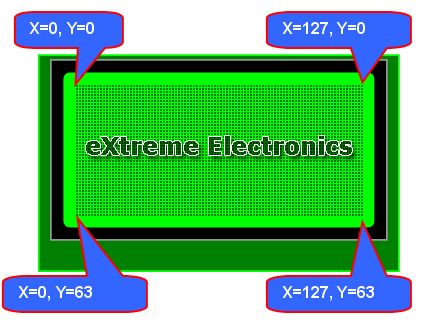 |
Pixel Addressing in 128×64 glcd |
Colors
In ProGFX engine only two colors are defined they are
- GFX_COLOR_BLACK
- GFX_COLOR_WHITE
Most of the ProGFX functions takes pixel address and color as arguments.
Drawing A Pixel in GLCD
The function which draws a single pixel in ProGFX is called
void GFXRawPutPixel(UINT8 x,UINT8 y,UINT8 color);
The function is very simple. The first argument is the x location of pixel, the second is the y location of pixel, the third is the color of the pixel.
Example
To plot a pixel at (32,24) with black colour.
#include <gfx.h>

void main()
{
   //Initialize ProGFX Engine
   GFXInit();

   //Draw a pixel at 32,24 in Black
   GFXRawPutPixel(32,24,GFX_COLOR_BLACK);

   //Update the display
   GFXUpdate();

}
Drawing A line in GLCD
A line is a geometrical figure defined by two points. A line can be drawn on GLCD by specifying a start point and an end point. The function in ProGFX which draws a line is explained below.
void GFXLine(UINT8 x1,UINT8 y1,UINT8 x2,UINT8 y2,UINT8 color);
Arguments
- x1 = start x co-ordinate.
- y1 = start y co-ordinate.
- x2 = end x co-ordinate.
- y2 = end y co-ordinate.
- colour = either GFX_COLOR_BLACK or GFX_COLOR_WHITE
Return Value
- NONE
Example
Draw a line between (16,16) to (100,41) in Black colour
#include <gfx.h>

void main()
{
   //Initialize ProGFX Engine
   GFXInit();

   //Draw a line between (16,16) to (100,41) in Black colour
   GFXLine(16,16,100,41,GFX_COLOR_BLACK);

   //Update the display
   GFXUpdate();

}
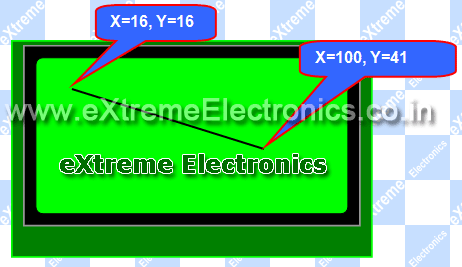 |
Line in GLCD |
If the line you want to draw is perfectly horizontal or vertical then you may use the following two functions.
- void GFXHLine(UINT8 x1,UINT8 y1,UINT8 len,UINT8 color);
- void GFXVLine(UINT8 x1,UINT8 y1,UINT8 len,UINT8 color);
These function takes starting point and the length of line. They are much faster than generic GFXLine() function.
Drawing a Rectangle In GLCD
Rectangle can be drawn on the screen by specifying two points and colour.
- Top-left point
- Bottom-right point
The function which draws a rectangle is documented below.
void GFXRect(UINT8 x1,UINT8 y1,UINT8 x2, UINT8 y2,UINT8 color);
Argument:
- x1 = top-left x co-ordinate.
- y1 = top-left y co-ordinate.
- x2 = bottom-right x co-ordinate.
- y2 = bottom-right y co-ordinate.
colour = either GFX_COLOR_BLACK or GFX_COLOR_WHITE
Return Value
- NONE
Example
Draw a rectangle between (16,16) and (100,41) in Black colour
#include <gfx.h>

void main()
{
   //Initialize ProGFX Engine
   GFXInit();

   //Draw a rectangle between (16,16) to (100,41) in Black colour
   GFXRect(16,16,100,41,GFX_COLOR_BLACK);

   //Update the display
   GFXUpdate();
}
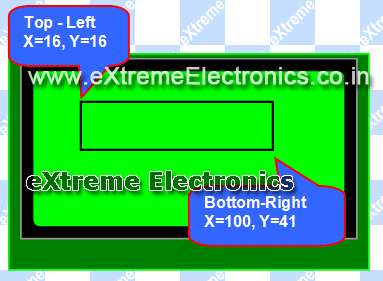 |
Rectangle in GLCD |
Drawing a Filled Rectangle in GLCD
In place of above function use the following function. It will draw a filled rectangle.
void GFXFillRect(UINT8 x1,UINT8 y1,UINT8 x2, UINT8 y2,UINT8 color);
Example
Draw a filled rectangle between (16,16) and (100,41) in Black colour
#include <gfx.h>

void main()
{
   //Initialize ProGFX Engine
   GFXInit();

   //Draw a filled rectangle between
   //(16,16) to (100,41) in Black colour
   GFXFillRect(16,16,100,41,GFX_COLOR_BLACK);

   //Update the display

   GFXUpdate();
}
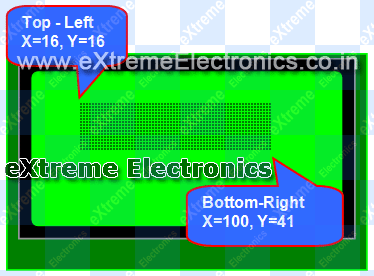 |
Filled Rectangle in GLCD |
Drawing a Circle in GLCD
Circle can be drawn on GLCD by specifying the center and the radius. The following function draws a circle in ProGFX.
void GFXCircle(UINT8 cx,UINT8 cy,UINT8 rad,UINT8 color);
Argument:
- cx = x co-ordinate of center.
- cy = y co-ordinate of center.
- rad = radius.
- colour = either GFX_COLOR_BLACK or GFX_COLOR_WHITE
Return Value
- NONE
Example
Draw a circle with center at 64,32 and having a radius of 20 pixels in Black colour.
#include <gfx.h>

void main()
{
   //Initialize ProGFX Engine
   GFXInit();

   //Draw a circle with center at 64,32
   //and radius of 20 pixels.
   GFXCircle(64,32,20,GFX_COLOR_BLACK);

   //Update the display

   GFXUpdate();
}
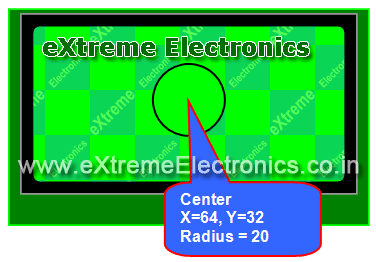 |
Circle in GLCD |
System Functions of ProGFX
void GFXInit();
This function Initialize the ProGFX Graphics Engine. Must be called before using any other graphic functions.
Argument:
NONE
Return Value
NONE
void GFXUpdate();
This function transfers the internal graphic buffer to the LCD Module. After your drawing is complete you must call this to make it visible on screen.
Argument:
NONE
Return Value
NONE
void GFXClear();
This function Clears the screen.
Argument:
NONE
Return Value
NONE
Other Parts of the Tutorial Series
- Part I – Introduction to GLCD and Hardware Setup
- Part II – Downloading and Installing ProGFX!
- Part III – Explains Graphic Primitive Functions.
- Part IV – Font and Text Handling Functions.

Pingback: Interfacing Graphical LCD with AVR MCU - Part II | eXtreme Electronics
Pingback: Interfacing KS0108 based 128x64 Graphical LCD with AVR Microcontroller. | eXtreme Electronics
Good tutorial ..In last tutorial you created library for Progfx with extension of .lib file how to creaate our own library can u give guide me
@Kiran,
In gcc compilers library has extension .a and NOT .lib
Also when you downloaded WinAVR (avr-gcc) it comes with its own user manual which is very good. So why are you asking such silly things so as how to make a library if it is clearly given on the manuals ???
sir,can u please upload the custom characters tutorial for
a 16×2 lcd (4-wire)module.I have been waiting for it long time.
It would be great help for me,sir.Thank you.
Thank you Avinash..i didn’t read the user manual thats the problem ..any how thank you.. i will do it..
Hi Avinash,
It was an excellent tutorial. I was waiting for these tutorials ever since you said that GLCD tutorials are on their way.
Hai Avinash
I saw your tutorial about the graphical LCD.Its amazing.congrats…I want to one thing that can i change the port pins that connecting with the graphic LCD.Or i should have to connect in the same manner as shown in the above circuit diagram.Please give me a solution. Thank you
Amazing tutorials keep it up…
Does the library works with a st7920? Thanks.
Hi,
This is probably not the right place to say this, but, there is another IDE for AVR development called Visual Micro Lab and its awesome. It uses the same WinAVR backend, but it can simulate all kinds of devices that you would connect with an AVR (yes, even an LCD!!) along with the AVR. the website is : http://www.amctools.com/. Best part is Its Free!!
Regards.
@Swaroop,
Ya, we know VMLab, use it and love it!
GFXRawPutPixel(32,24,GFX_COLOR_BLACK); will draw a pixel but how to erase the same pixel?
is there any other command by which a drawn pixel can be erased?
pls tell…..
thanks in advance
@Srinath
Common sense
GFXRawPutPixel(32,24,GFX_COLOR_WHITE);
Lovely work….Keep it up buddy…
I am interfacing the GLCD to the atmega128. The problem is that the left hand side of the display does not display anything. I have to press the reset button a couple of times to get it working. Can anybody suggest a solution?
Hello Avinash!!
Hey i am looking for some driver code for interfacing this 128×64 graphics LCD with PIC24 . Do you have any idea about that. I would greatly appreciate if anyone help me.
Regards,
Savita Patil
i have a problem, my right half of the screen is shifted down by 4 pixel.. can u please tell me how to solve it?
@Ash
That’s because you are using a crap hardware ! Use this board for neat going !
http://store.extremeelectronics.co.in/GLCD-Dev-Board.html
I am looking for some driver code or software, for interfacing 240×128 GLCD based T6963C. I find somewere from one site, but ar incomplete, is for LINUX OS, and are manny characteres in arabian languages.
I want make one weather station with ATmega MCU, GLCD T6963C based 240×128, 2xDS18b20, SY-HS120, MPX2100AP, PCF8583P, wind meter and wind wane, and field high potencial detection.
With PIC16F877A, I find from 3 sites, but not with previsiones weather, displaing pressiure for 72 hours before, and manny litle problems for one farmer with location in midle of the field, to 100 mile from first neighbours.
Thank`s for your projects for beginners.
@Victor,
Sorry bro you have to do it yourself !
hi i want to load bmp image on GLCD so i used this function
GFXDrawImage(127,64,seq2);
and my image is stored in seq2.h file but there is no display image on gLCD..help me
Can u please tell me how to use a touchscreen mounted on a Glcd using avr…Please just give me an idea
Dear Sir,
i saw your tutorial, it is very nice,
my small request to you is,
i am using NXP’s P89V51RD2 microcontroler and JHD12864E graphic display, do you give me the c code to display characters in this display(128 by 64 display).
Thanks and regards,
Arogya Reddy
Sir,
I want to interface GLCD Dev board with ADuC845 micro-controller do you have any board? or software programs to get an idea about interfacing .
Sir I have interfaced my GLCD with above mentioned controller,but I am not able to use your fonts by adding Header files in program. my program is array based for accessing each pixel.PLEASE help me sir i am stuck with it as i cant use any of your features with ADuC845
Thank you ,
Omkar.Agashe
PH:8237685509
In this page the image “Pixel Addressing in 128×64 glcd” i think max(x,y) should be(127,63) because (x,y) starts from (0,0) not (1,1).
@Arnab,
Thank you for pointing out the mistake. It has been corrected.
Hello Avinash,
I have been experimenting with the GLCD Development Board and find it very interesting. Is there someplace from where I can get the complete list of ProGFX functions (preferably with brief explanations)?
Thanks and regards.
nice tutorial 🙂
@Vasudev,
Thanks!
extremely helpful
Hello sir
I am thankfull yo sir for very helpfull avr tutorials.
sir i wnats to use progfx for graphical lcd interfacing
but during compilation it shows the following errors
Error 1 unknown type name ‘prog_uint8_t’
Error 5 variable ‘Arial12’ must be const in order to be put into read-only section by means of ‘__attribute__((progmem))’
Warning 6 ‘Arial12’ defined but not used [-Wunused-variable]
please help me
and how to change lcd pins
@Balwinder,
You should be our customer to get any personal support.